
You've set up your blog in HubSpot, and you've hit the wall. The default setup forces you into a one-size-fits-all model: one template for your listing page and a single template for every blog post you publish.
But your content strategy is diverse. You have at least two key formats, and they can't look the same:
-
Quick-Hit Content (e.g., Company News or Announcements): Simple, short updates that need a clean, minimalist design with a clear, single Call-to-Action (CTA).
-
Conversion-Focused Content (e.g., Core Product Guides, Long-Form Industry Posts, or Pillar Content): Long-form articles that require unique elements like a sticky table of contents, custom data visualization modules, or a different sidebar to maximize conversions and SEO rankings.
Using the same template for both hurts user experience and conversion rates.
The good news: While HubSpot doesn't offer a direct setting for this, there's a workaround that allows your content team to select a different template for every single blog post from a simple dropdown menu. Here is the technical solution to finally control your HubSpot blog design and drive better results.
Step 1: Create the base blog template
Before we build the dynamic logic, we need the foundational piece: the main blog post template.
This is the standard, single template that HubSpot requires and which you will assign to your blog posts within your account settings ().
This template's primary purpose is to act as a container, it holds the single piece of custom logic (our template selector) that will then tell the page which of your specialized templates (Company News, Pillar Content, etc.) to display.
For the developer, this template needs to be a standard blog_post template containing the basic blog template wrappers and, most importantly, the template selector logic we will create in the next step.
Your base template structure should look something like this:
(Please replace all the {#- -#} with {% %}, this is done to prevent HubSpot from interpreting the code as actual HubL and therefore breaking the site)
<!-- templateType: blog_post isAvailableForNewContent: true label: Blog post template screenshotPath: ../images/template-previews/blog-post.png-->{% set template_css = "../../css/templates/blog.css" %}{% extends "./layouts/base.html" %}
{% block body %}
{# Your content goes here #}
{% endblock body %}
The code above is doing the following:
- Sets the template type to blog_post, which ensures you can select it in your Account Settings when you are setting up the Blog
- Loads a specific CSS file for your blog posts (../../css/templates/blog.css)
- Extends the main base template (base.html) and replaces the body of the base template with whatever you include inside block body .
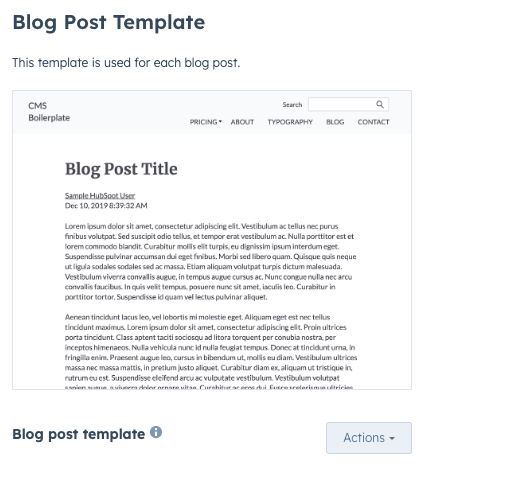
Step 2: Create two partial templates (or as many as you want)
Great, you now have the main template assigned to your blog. But the goal is to have multiple, flexible designs.
The next step is to create those custom designs. Here's the critical trick: They won't be of the type blog_post. They will be separate partial templates of the type page.
We will create one partial template for each unique blog post design you need. For example, if you require separate layouts for "Quick-Hit Content" and "Pillar Content," you will create two partials.
Why Use Partial Templates?
-
Organization and Maintenance: You could technically cram all the code for many different layouts into the single main blog template, but I wouldn't want to be the developer maintaining that massive, complex file! Creating small, focused partials keeps your code clean, simple, and organized.
-
Performance: Partials make the code structure more modular, improving readability and speed for the CMS developer.
Let's go ahead and create the partials we need. For this example, we will create two files: template_one.html and template_two.html.
A partial template is a standard HTML + HubL file, but its structure is simpler because it doesn't need the standard HubSpot page wrappers. Its sole job is to define the specific layout and modules for that content type.
Your partial template structure should look like this:
<!-- templateType: page label: Blog - Template One (or whatever name you choose)-->
<!-- Your HTML + HubL code goes here -->
If you have the same folder structure as HubSpot's boilerplate, then the partials should go under templates > partials.
But HTML is not all we need—what about CSS?
Let's repeat the file creation process, but this time for styling. You should create two separate CSS files, one for each template: template_one.css and template_two.css. If you are following the same folder structure as HubSpot's boilerplate, they should be located under: css > templates (e.g., /css/templates/template_one.css).
We will use these dedicated CSS files in the upcoming steps to ensure each template's custom styling is only loaded when that specific template is active.
Step 3: Add a template selector
Alright, we are making great progress! We have our base template container and our partial templates with their unique CSS files. It's time to add the dynamic selection logic!
The great news is that the solution is quite simple. All we need to do is add a choice variable to our main blog_post template.
So, let's update the blog post template from step 1 to include the choice variable:
<!-- templateType: blog_post isAvailableForNewContent: true label: Blog post template screenshotPath: ../images/template-previews/blog-post.png-->
{% choice "template_type" label="Choose the template type", value="Template one ", choices="Template one, Template two", export_to_template_context=True %}
{% set template_css = "../../css/templates/blog.css" %}{% extends "./layouts/base.html" %}
{% block body %}
{# Your content goes here #}
{% endblock body %}
Now, if we head back to HubSpot and we create a new blog post, we should see the following selector inside the Contents tab in the sidebar, where we will be able to select between templates.
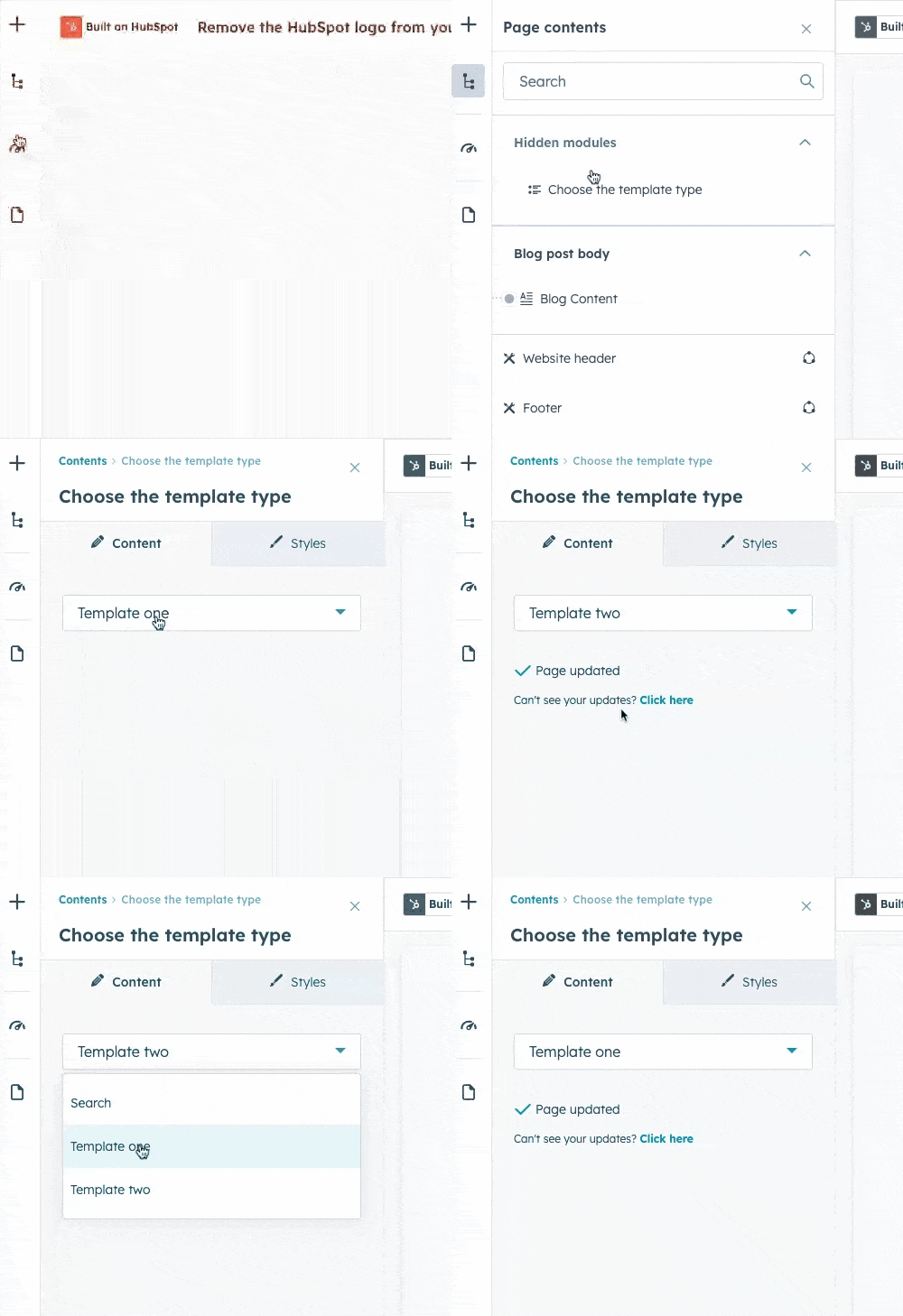
Alright, so we have the templates and the selector; we are just missing the logic to connect them!
The logic needed must do the following:
-
Load a default template (let's choose
template_one) because we don't want our HubSpot editor to see an empty page when creating a new blog post. -
Change the template and load the correct styles when a different template is selected using the Content tab in the sidebar.
For that, all we need is a simple IF statement to check the value of the template_type variable and act accordingly.
The following code will do it:
<!-- templateType: blog_post isAvailableForNewContent: true label: Blog post template screenshotPath: ../images/template-previews/blog-post.png-->{% choice "template_type" label="Choose the template type", value="Template one ", choices="Template one, Template two", export_to_template_context=True %}{% if widget_data.template_type.value == 'Template two' %} {% set template_css = "../../css/templates/blog-two.css" %}{% else %} {% set template_css = "../../css/templates/blog-one.css" %}{% endif %}{% extends "./layouts/base.html" %}{% block body %} {% if widget_data.template_type.value == 'Template two' %} {% include '/my-theme/templates/partials/template_two.html' %} {% else %} {% include '/my-theme/templates/partials/template_one.html' %} {% endif %}{% endblock body %}
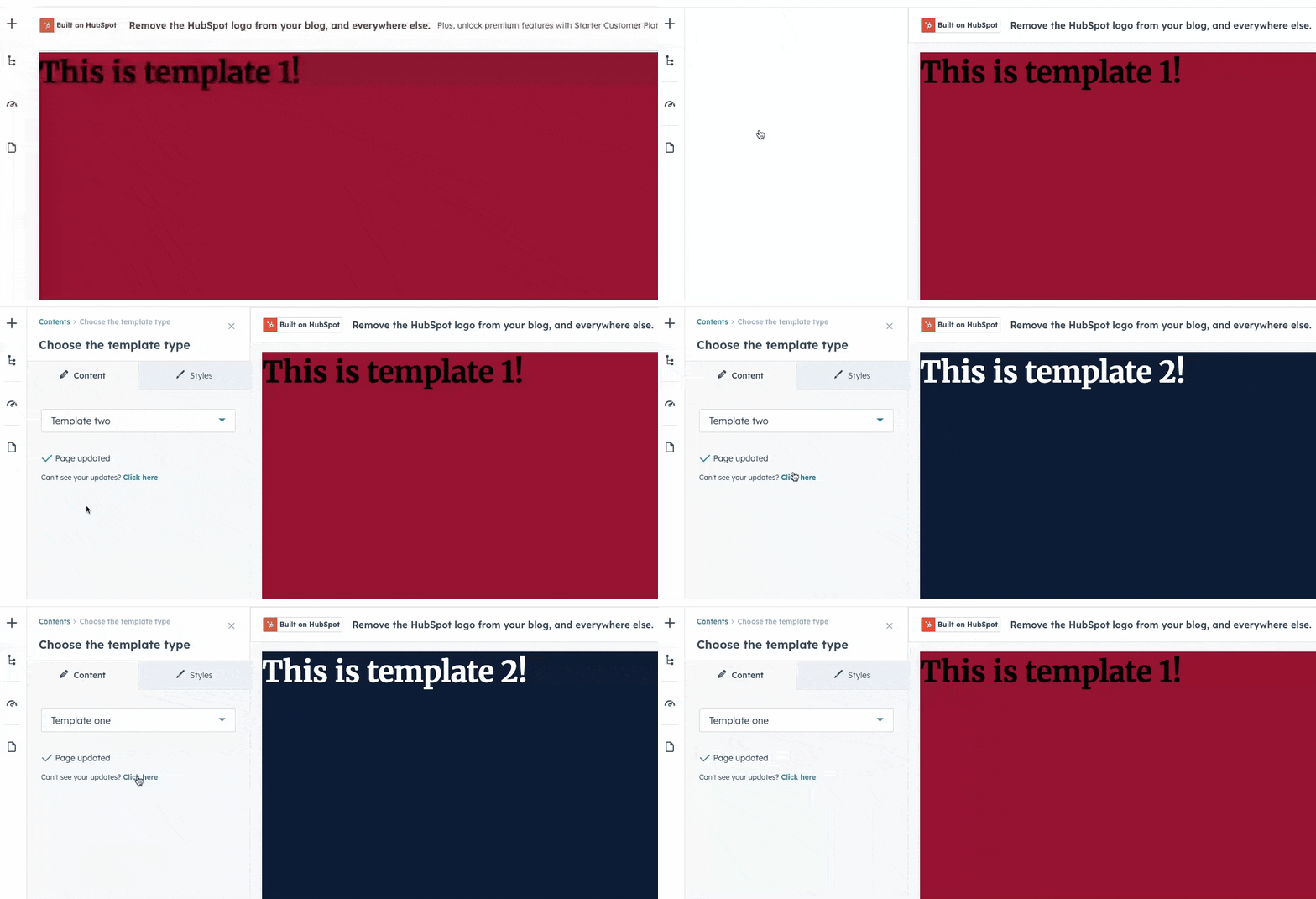
And that's it! We've added multiple templates to our main blog post template and made template selection easy while keeping the code clear and organized.